95 top Photoshop tutorials

Love it or hate it, Photoshop continues to be the design software of choice for millions of designers across the globe for a wide range of tasks, from photo editing to graphic design, typography, illustration, 3D modelling and animation. It's continually being updated – which means at some point you'll need a Photoshop tutorial to teach you a new tool, technique or effect.
That's where we come in. Here, we round up the very best Photoshop tutorials from around the web covering all of these areas and more – at all levels, and whether you're rocking Photoshop CC or using an older software version.
And to save you from unnecessary confusion, we've organised these video tutorials and written step-by-step tutorials and guides to suit your level of Photoshop skills. Choose your difficulty level – beginner, intermediate or advanced – from the dropdown menu above and get started...
Photoshop tutorials for beginners: tools
01. How to use the Custom Shape Tool
Find out how to create complex shapes in this bite-sized Photoshop tutorial
This Photoshop tutorial introduces the Custom Shape Tool. You’ll learn everything you need to know to start adding custom shapes to your designs and layouts – including how to use various settings such as Fill, Stroke and more – in less than three minutes.
02. How to use the Dodge Tool
This Photoshop tutorial introduces the Dodge tool. You'll learn how to selectively lighten areas of an image. Learn about brush options, Range, and Exposure. Brighten eyes, pick out details, and much more.
03. How to use the Burn Tool
Learn how to use the Burn tool in two minutes
One of our Photoshop tutorials, hosted on the Creative Bloq YouTube channel, introduces the Burn tool. In this easy-to-follow video, discover how to selectively darken areas of an image, with an overview of settings and tips on working with Shadows, Midtones and Highlights.
04. How to use Photoshop's Image Sizing tool
Being able to manipulate bitmaps enables you to create a virtually unlimited array of effects. In this tutorial, we run through how to get the best out of the Image Sizing tool in Photoshop CC.
05. Get creative with Face-Aware Liquify
Face-Aware Liquify makes caricaturing easy
The latest version of Photoshop CC's Liquify tool has some powerful facial recognition skills, enabling it to detect areas of the face, such as the eyes, mouth, nose and overall face shape, so you can adjust and warp them with impunity.
In this Face-Aware Liquify tutorial, T3 art editor Luke O'Neill, explains how to get the most of it, from simple adjustments to crazy facial distortions.
06. How to use Photoshop layers: 6 top tips
It may take a bit of time, but learning to use Photoshop's layer system is the key to unlocking the software's versatility
Learning to use Photoshop's layer system is key to unlocking the software's versatility. In the same way that traditional animators use several sheets of acetate in a single shot, painting different parts of your picture on different layers means they can be edited separately while still being viewable as a whole.
In this Photoshop tutorial, you’ll find out how to everything from create layers to locking them, grouping them and adjusting opacity.
07. How to use Photoshop layer masks
These helpful layer mask tips will help to streamline your digital art workflow
The helpful layer mask tips in this Photoshop tutorial will help you streamline your digital art workflow. As any Photoshop beginner will quickly learn, layer masks are one of the most fundamental parts of the software: without them your work will look flat. Follow these seven tips and shortcuts to work more quickly and easily with layer masks.
08. How to use the Colour Replacement Tool
This Photoshop tutorial shows you how to quickly replace colours
Another of our YouTube Photoshop tutorials, this short video introduces the Color Replacement Tool, which lets you paint roughly over an area of an image. Discover how to replace colours based on Hue, Saturation, Colour and Luminosity.
09. How to use the Content-Aware Move Tool
Get to grips with the Content-Aware Move Tool in this two-minute Photoshop tutorial
This Photoshop tutorial introduces the Content-Aware Move Tool, which lets you select pixels and move or extend them to another area of your image without the use of layers and masks.
In the easy-to-follow video, we reveal how Photoshop can analyse pixels and heal unwanted portions within an image.
Photoshop tutorials for beginners: techniques
10. Make quick selections in Photoshop
Simple cut-outs and masking tasks form the backbone of much design work in Photoshop
The ability to perform simple cut-outs and masking tasks is a basic requirement of any designer, and often forms the backbone of any Photoshop work that you may undertake.
In this step-by-step Photoshop tutorial we run through three basic techniques for creating simple selections, and then cover the layer mask options and how they work a little more in depth.
11. How to customise animated GIFs in Photoshop
Alter any animated GIF to fit the style of your latest project
Animated GIFs are a great way to make your designs more eye-catching. With Photoshop, you can customise any animated GIF to fit the style of your project.
This tutorial runs through three methods of customising animated GIFs in Photoshop, using adjustment layers, blending options and a more time-consuming – but flexible – frame-by-frame technique.
12. Reduce camera shake in Photoshop CC
Get to grips with Photoshop's Camera Shake Reduction filter
As a photographer, it's inevitable that you will wind up with the occasional blurry image. Fortunately, in Photoshop CC, Adobe has a special 'Camera Shake Reduction' filter to help you repair these images. Follow this Photoshop tutorial to find out how to repair your images in six easy steps.
13. Age a photograph in Photoshop CC
Turn any photo into an aged, sepia-toned image in Photoshop
Ageing a photograph in Photoshop is a classic technique that can turn even a ho-hum, full colour image into something striking. If your design work requires a vintage look, replicating the look of a distressed old photo digitally can work wonders.
However, it’s more than merely converting a photograph to sepia tones and calling it a day. In this article, we explore how to age a photograph using the duotone technique.
14. Transform a pencil sketch in Photoshop
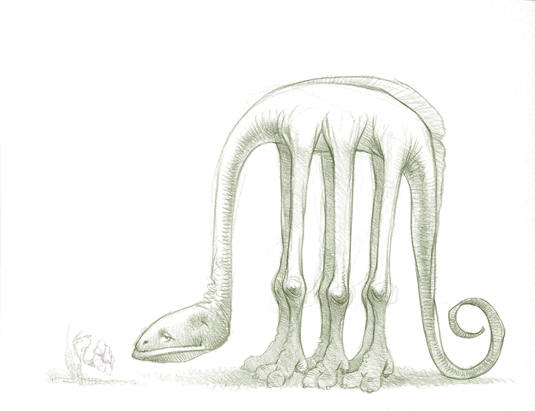
Make your hand-drawn sketches easier to work with digitally using these quick steps
Colourising a scanned hand-drawn pencil sketch to get rid of the black lines can save an artist lots of work and aggravation. Dark, black lines are hard to paint over while maintaining the sketch. Thankfully, there's an easy way to colour and soften those black lines using Photoshop – this tutorial shows you how.
15. Turn day into night in Photoshop
Turning this daytime scene into night was inspired by the superb effects work in Lars von Trier's film Melancholia. Shooting landscapes at night can present all sorts of challenges – and even more so if you were shooting a moving image and couldn't use long exposures.
In this tutorial, Ben Secret shows you how to use Curves layers to control your tones and turn day into night.
16. Make a poster from a template in Photoshop
This handy Photoshop tutorial from Adobe will show you how to make a poster from a template in less than 60 seconds. Whether you're a beginner or just want a (very) quick refresher, this walkthrough will have you designing posters faster than ever.
17. Turn photos into simple caricatures
Master Photoshop's Free Transform tool with this tutorial, and use it to warp portraits of your subjects into comical caricatures. Making these cartoon-like photos is a great way to get creative, and will help you become more familiar with the Free Transform tool.
18. Digital painting with Photoshop CC for beginners
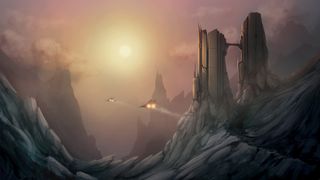
Get to grips with digital painting in Photoshop with this handy guide
If you can work on a canvas with paints, then many of the same painting techniques you use will transfer directly over to digitally painting in Photoshop. Core principles such as composition, colour theory and perspective still apply. This Photoshop tutorial for beginners breaks down the process of creating a simple digital painting, from start to finish.
19. Add frames to photos using Photoshop and Lightroom
Using a combination of Photoshop and Lightroom, here you'll discover a few ways to add frames and borders around your photos. The workflow includes using tools such as Photoshop blend modes, custom brushes and layer styles.
20. Make a pure white background in Photoshop
In this easy-to-follow tutorial, the team at Phlearn show you how to create a perfect white backdrop without losing too much detail in your images.
21. Colourise a black and white photo
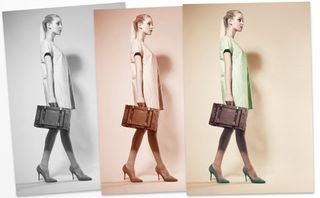
Take control of your image colouring with this tutorial from Ben Secret
Designer Ben Secret show how to take control of your image colouring with Photoshop's Color Balance tool.
22. Working with video in Photoshop
While Photoshop is best known as a photo editor, it also includes some powerful video editing tools. In this short, simple tutorial, learn how to use the timeline panel to apply smart filters and adjustment layers to your videos.
23. Remove skin blemishes with the Spot Healing brush
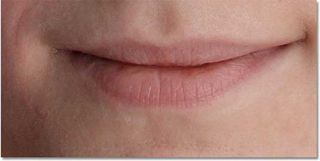
Learn how to repair lips with the Spot Healing brush
Everyone wants to look their best and in this tutorial you'll be able to do just that. You'll learn how to remove any skin blemishes, acne or any other problems to create the perfect image.
24. Quickly select skin tones
If you want to know about the Skin Aware technology in CS6 then this is the tutorial for you. Learn how to quickly select skin tones and get to grips with this awesome feature.
25. How to change eye colour in Photoshop CS6
Check out this quick two-minute tutorial, which will show you how to change a subject's eye colour.
26. Take care of fly-away hairs
This super time saving tutorial will teach you how to get rid of stray and fly-away hairs using the dust and scratches filters.
27. Change hair colour in Photoshop CS6
Here, you'll discover how to use the new tools of Photoshop CS6 to change any hair colour. From blonde to red and brown to green, the choices are endless!
28. Use Photoshop Actions to apply multiple effects
We show you how to record a series of edits as an Action that can be quickly applied to images, as we create a cool retro effect in Photoshop CS6.
Photoshop tutorials for beginners: effects
29. Create a kaleidoscope effect in Photoshop
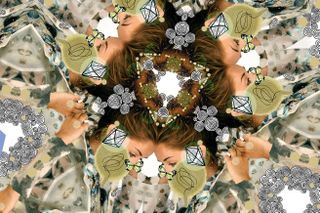
Drawn and photographed elements come together
Amber Grayson reveals how to combine handmade and digital elements to create a kaleidoscope effect in Photoshop.
30. Add a bokeh effect to your images
Create out-of-focus highlights from scratch with a little help from Photoshop CS6's new time-saving shortcuts, in this easy to follow, four-step tutorial.
31. Get the toy camera look
Combine a number of different simple but effective techniques to imitate the retro, lo-fi toy camera look, using simulated light leakage and a vignette in Photoshop.
32. Make your own pop art portrait
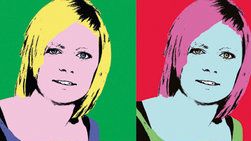
Create an Andy Warhol-style multi-image pop art picture
Convert a bland portrait into a pop art masterpiece to get creative and enliven your forgettable shots. For this tutorial, we'll be using Photoshop filters, selection tools, Adjustment Layers and Layer Masks, and the Hue/Saturation command.
33. Recreate a fish-eye effect
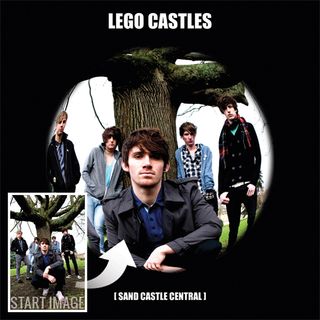
Get a 60s psychedelic style image
Give images the super-distorted fish-eye treatment, then crop and add text to get the look of an iconic album cover.
34. Apply a quick vintage look in Photoshop
Use Photoshop CS6's Color Lookup feature to change colours within an image, in four simple steps.
35. Create tilt shift photography
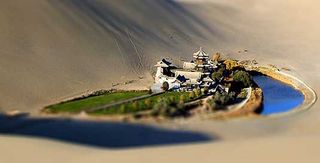
Recreate a tilt-shift effect using Photoshop
Tilt-shift photography refers to the use of camera movements on small and medium format cameras. The guys at animhut show you how to re-create this effect using Photoshop CS6.
36. Add dramatic rain to a photo in Photoshop
Tony Aube demonstrates how to add a dramatic rain effect to a photo in Photoshop, then goes a step further and shows how to make the image more photorealistic by adding reflections and small puddles.
37. Create a repeating pattern in Photoshop
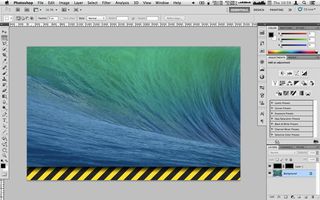
You can create all manner of images and effects in Photoshop CC
Here we'll show you how to create a single 'tile' for a repeating pattern for the stripes; then you can fill as big or as small an area as you like with it...
38. Create an easy abstract blur pattern design
Spoon Graphics demonstrates how to make a cool geometric gradient pattern using Photoshop and a bit of Illustrator.
39. Create a fast and simple Instagram effect
Don't have a smartphone but long to create those vintage Instagram effects on your photos? This simple and quick tutorial will show what effects to add to accomplish an easy 'Instagram look'.
40. Add a colour splash effect
Want to mix black and white imagery with a bit of colour? This three-minute tutorial will show you exactly how to isolate a specific colour in your photos.
Feeling more confident? Head to the next page for some intermediate-level Photoshop tutorials.
If you're more confident than a beginner, but not yet an expert Photoshop user, then these creative Photoshop tutorials for intermediate-level designers are for you.
41. Create style frames in Photoshop
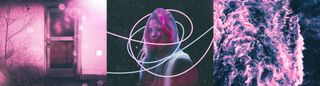
Make style frames to convey the mood of motion graphics
A style frame is a snapshot of a finished frame as it would look within a longer animation. It aims to capture the overall look and feel of an animated or live action video, but in a still image. For this tutorial we'll use an example for a title sequence that would precede a new TV show.
42. Make a double exposure in Photoshop
Adobe's 60-second Make It Now video shows you how to use Photoshop to make a double exposure.
43. The Refine Edge box tool explained
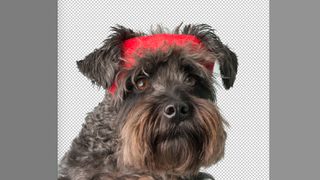
Learn how to use the Refine Edge box perfectly every time
If you've ever tried to change the background of a person with frizzy hair or a horizon dotted with bushy foliage, you'll know just how intensely time consuming and nigh-on impossible this can be. Luckily the Photoshop CC Refine Edge box tool is here to make your life easier. To explain this crucial tool, we run through its seven main features.
44. Combine traditional and digital skills to create a comic cover
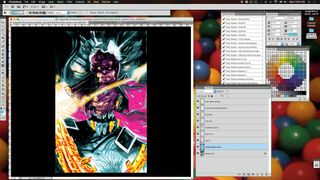
Draw and ink by hand, then go to Photoshop to do your colouring
If you like working with traditional materials, there's still plenty you can do in Photoshop to give your work more impact. Here Chris Visions explains how to draw a comic cover by hand then take it into Photoshop to colour and light it and to add eye-catching filters.
45. Rapid site prototyping in Photoshop CC
Photoshop CC offers a comprehensive toolset for mocking up websites quickly and easily. Antony Kitson explains how to use the key features to get an idea across to a client or developer.
46. Cut your design time when using Photoshop CC
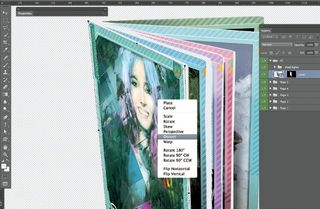
Save time and your sanity with this quick tutorial
Graphic designer Paul Tysall demonstrates how to hone your Photoshop workflow to save time on repetitive pre-press tasks.
47. Use Photoshop's Tilt-Shift filter
Using Photoshop's CS6 Tilt-shift blur effect, Ben Secret explains an innovative approach to saturation by creating a miniature model village. In this Photoshop tutorial you'll learn how to simulate an exaggerated depth-of-field effect.
48. The ultimate guide to adjustment layers – curves
Curves allows you to adjust the tonal values in an image, increase or decrease the exposure, or automatically colour correct. This tutorial provides a comprehensive explanation of the Curves functions and how to use them.
49. Combine colour with monochrome in Photoshop
Get creative with colour, learn how to create a wider tonal range, and create classic images with added impact in six simple steps! A fantastic Photoshop tutorial to boost your skills.
50. Erase unwanted backgrounds in Photoshop
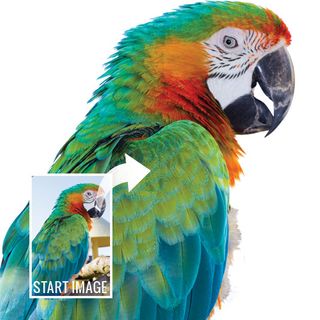
Use the Eraser tool to create white backgrounds
Use the Eraser tools to select and delete unwanted backgrounds - or even just parts of them. We show you how in this Photoshop tutorial.
51. Post-production fixes
Photography in design can be a tricky aspect. Here, 10 world-renowned designers channel their best advice on how to get the most from your photos using Photoshop in post-production.
52. Blur backgrounds easily in Photoshop
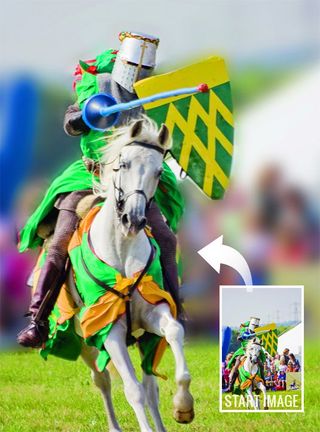
Backgrounds often ruin what is an otherwise perfect picture
Wished you'd taken that shot with a wider aperture? Make it happen in Photoshop using a blur filter and a painted mask.
53. The complete guide to fixing exposure in Photoshop
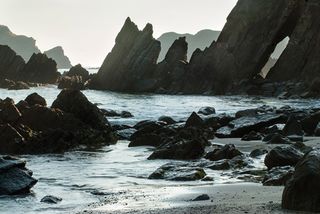
The majority of images benefit from a tweak to the exposure or contrast
What is a histogram? How do you fix poorly exposed photos? We answer these questions and more with this Photoshop tutorial walking you through exposure in Photoshop CS6 and Camera Raw.
54. Design a chrome and plastic button in Photoshop
Making UI elements should be part of every designer's toolbox. Here's how to make a cool looking chrome and plastic button in Photoshop.
55. Create a realistic sketch effect with Photoshop
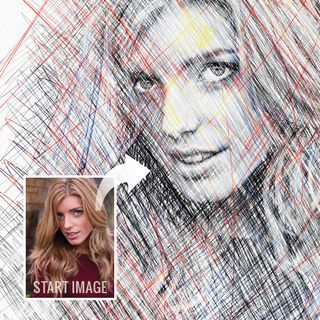
Photoshop CS6 has a fine collection of filters designed to turn photos into a variety of art styles, including a Colored Pencil filter in its Artistic filter folder
With the help of Photoshop's stamp and brush tools, we reveal how you can convert your photographs into stunning pencil sketches!
56. Recreate infrared photography in Photoshop
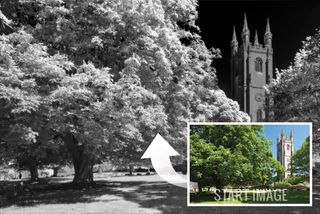
The best way of getting a similar infrared effect is to take an image with lots of green in it
You don't need a dedicated camera to take an infrared image - you can do it in Photoshop instead. We explain how, in just six simple steps.
57. Create a Polaroid pinboard effect
Transform a single image into a striking montage of Polaroid shots with this fun Photoshop layers technique.
58. Create a fashionable cross-processing effect
Fashion photographers used to develop film in the wrong chemicals on purpose to create striking colour effects. Here's how to achieve the look in Photoshop.
59. How to create a dramatic digital painting in Photoshop
In this tutorial Trisme Trs will take you through the process of creating a dramatic digital painting in Photoshop, and show you how to illustrate an eagle and falcon battling it out in the sky.
60. How to combine brushes with texture in Photoshop CS6
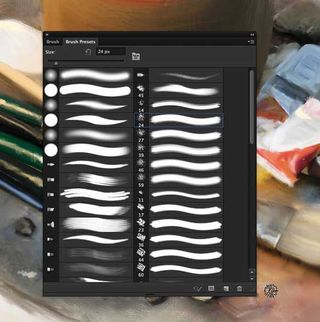
Add a touch of texture to your brush stroke
Make your painting really stand out by adding a touch of texture to your brush stroke using this simple, quick guide.
61. Create a mech-inspired text effect using layer styles
This great 20-minute tutorial will show you exactly how to create a mechanical inspired text effect using layer styles.
62. Create a 'text in water' effect
This rather specialist tutorial walks you through how to create the effect of text submerged in water. The training will help you get to grips with the liquify filter, custom brush and free transform tool.
63. Create a Chocolate Volcano Using 3D Effects

Get to grips with the 3D capabilities of Photoshop
A Photoshop volcano is awesome but a chocolate volcano? Even better. Get to grips with the 3D capabilities of Photoshop CS5 and beyond. It's at an intermediate level, so only approach this if you already know a thing or two.
64. Discover Photoshop's 3D tools
Photoshop CS6 Extended incorporates a new 3D tools engine, which enables your graphics card to deliver a super fast performance. This step-by-step guide demonstrates how the new Photoshop CS6 3D engine can be used to combine 3D sources.
65. How to create a micro machines inspired scene
Remember that awesome collection of little cars you had as a kid? Well, this tutorial will help refresh your memory as it explains how to utilises CS6's new 3D capabilites to create a Micro Machine inspired composition.
66. Use Photoshop's animate function
It's easy to forget that Photoshop also has an 'animate' function. James Wignall shows how to create the sort of hand-made animation that a young Walt Disney might have dabbled with.
67. How to create an abstract liquid effect
In this walkthrough, we'll show you how to use a photograph, some 2D elements and a 3D render to create an eye-catching, abstract liquid effect with a real sense of motion.
68. How to create a stunning magazine cover in Photoshop
The Phlearn team show you how to turn a photo into a magazine cover, using V Magazine as an example.
Ready for anything? Flex your skills with these advanced tutorials.
If you have mastered the basic tools and techniques of Photoshop and are after some creative inspiration and more advanced Photoshop projects, then try these professional-level tutorials.
You might also like these 60 best free Photoshop brushes and 60 Photoshop shortcuts to speed up your workflow.
69. Create painterly effects in Photoshop CC

Learn how to create a realistic antique effect
Adobe's two video tutorials help you take your Photoshop CC skills to the next level, and create painterly effects using its range of Edvard Munch paintbrushes.
70. The ultimate guide to compositing images in Photoshop
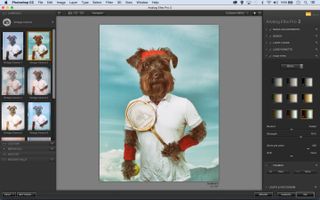
Master the art of convincing Photoshop composites with this comprehensive guide
Of all Photoshop projects, compositing images into one fantastic frame is perhaps the most enjoyable and creative pursuit. In this Photoshop tutorial we’ll show you how to shoot, build and finish off convincing Photoshop composites like this image of a dog crossed with a human tennis player.
71. Colour in Photoshop: top tricks
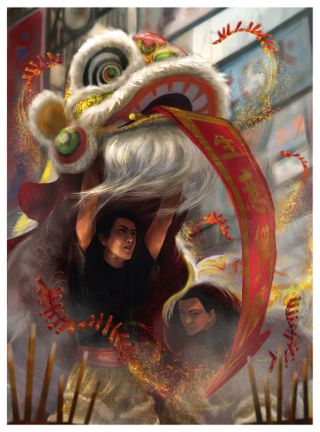
Discover how to paint with muted colours
Discover how to paint with muted colours and create a festival scene tinged with nostalgia, featuring Hong Kong’s Lion Dancers, using various Photoshop effects.
72. Turn photos into 3D animations with Photoshop
Photoshop allows us to add depth to photos, even animating the results, to truly breathe some fresh air into our old still albums, using its timeline capabilities.
73. Get more from custom Photoshop brushes
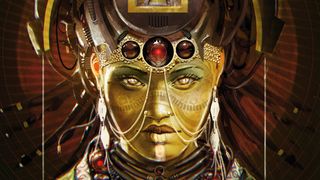
Discover how custom brushes can enhance your workflow and boost creativity
The things that can be done with custom brushes inside Photoshop's Natural Brush Media window are almost endless! It's amazing how you can manipulate your brush to create patterns, textures, hair, skin, that painterly feel, happy accidents and so on.
74. Create a cinemagraph with Photoshop in 60 seconds
Adobe's Make It Now series video shows you how to create a cinemagraph – an eye-catching moving image – in a minute.
75. Depict light glowing through fur
When painting digital light in fur, Photoshop's strong light layer styles can help. By switching between Soft Light, Hard Light and Overlay, and seeing what works best, you can achieve that very particular kind of glowing light that appears when light is scattered through and between strands of hair.
76. Make interesting vector shapes in Photoshop CS6
The introduction of vector shape layers in Photoshop CS6 has opened up a wealth of new possibilities. In this Photoshop tutorial you'll find some tips so you can make the most of them...
77. How to merge vectors with photographic imagery
Learn how to merge a few basic images and then mix them in with vector shapes to create a unique editorial illustration. Sound difficult? Actually no.
78. How to design a photorealistic app icon in Photoshop
Roman Jusdado explains how to use light and shadow plus layer styles and masks to make realistic artwork - in this case, a stylish record player app icon.
79. How to design an iPad app UI
Want to get involved in app development? It's certainly where all the action is. In this Photoshop tutorial we create two basic user interfaces for an iPad app and develop them to a prototyping level.
80. Create a 3D typographic illustration
Modern artists often use more than one application to create their work. This often means working outside of Photoshop much of the time. In this tutorial, João Oliveira will create a 3D typographic illustration using Cinema 4D to build the 3D and Photoshop for the post-production.
81. Create a summer-inspired 3D text effect

Discover how to create this summer-inspired 3D text in this easy-to-follow tutorial
In this Photoshop tutorial, discover how to create a summer-inspired 3D text effect, using the image editing software's 3D features.
82. Dramatic shadows in Photoshop CC
Ditch the default drop shadow! Here Abduzeedo shows you how to create a design with beautiful and dramatic shadows using the 3D tools in Photoshop CC.
83. Create amazing polygon illustrations in Photoshop
Using a classic image from Jaws, Rob Redman shows you how to utilise Photoshop CS6 to create awesome polygon art.
84. How to create a fantasy fairy

How to create this beautiful fairy from a single source image
Use this detailed tutorial to create a beautiful fairy from a single image. Training includes lessons on how to create a fantasy background, feathers, grass and mountains.
85. Create a fantasy landscape using digital painting techniques
This extensive tutorial will take you through everything you need to know to create a fantasy landscape using Photoshop CS6. Different stages include sketching, colour, defining the background, detailing, cloud creations, themes and textures.
86. Design a mixed media portrait in Photoshop and Illustrator
Anthony Neil Dart reveals how to produce creative portraiture with a mixed-media approach.
87. Create a Middle Earth-inspired landscape
Calling all Lord of the Rings and Hobbit fans! This in-depth tutorial will show you how to create a lush and vibrant Middle-Earth-inspired landscape in Photoshop.
88. Design a portrait collage
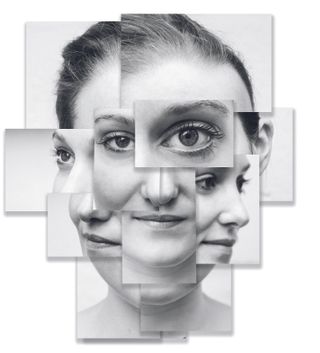
Create a Hockney-inspired abstract photo collage in Photoshop
Our sister site, Digital Camera World, shows you how to create a photo collage inspired by artist David Hockney's 'joiners'.
89. Create a dark, vintage style motorcycle poster design
Follow this step-by-step Photoshop and Illustrator tutorial to combine photography and typography and create a dark vintage style motorcycle poster design.
90. Create a comic book image
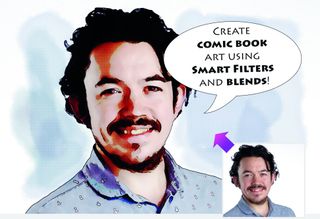
Turn your portrait into pop art
One way to create an eye-catching image is to give a photograph a stylized artistic makeover. A portrait shot against a plain background is perfect for this. By using Photoshop’s filters you can simplify the colours and tones in the picture to make them look as though they were drawn and inked by a comic book artist.
91. Combine words and portraits

Make striking designs in minutes
Should you be looking for interesting ways to combine text and images, why not give this Photoshop technique a go? Blending a word, phrase or quote with an image could have all sorts of uses, from stylish poster designs to internet memes.
92. Create your own lightsaber
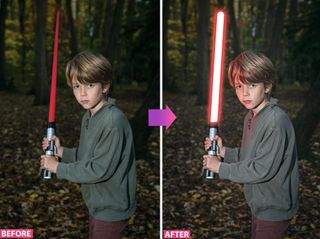
Thrill the kids with this project
In this Digital Camera World tutorial, you'll learn how to add the perfect glow effect with the Brush tool and a few layers and filters in Photoshop.
93. Create a magical shot of a person floating in mid-air

Create an incredible levitating person in two shots
This is one of those photo tricks that makes viewers think, ‘How did they do that?’ The answer is surprisingly simple and, like all the best Photoshop techniques, the real skill begins in-camera.
94. How to bend text to portraits
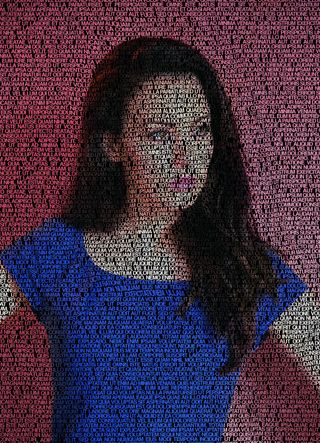
Warp text to the shape of a portrait in photoshop
Text and images are sometimes hard to pair together well. We’ve all seen the typical work of novice designers, where a black box is simply laid over the image and white or coloured text placed on top. But there’s another way to team the two, using Photoshop.
95. Get creative with Photoshop Blend Modes
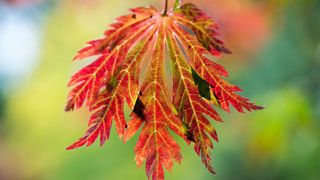
Photoshop Blend Modes give you the power to combine layers and images for a huge variety of effects
With 26 Blend Modes on offer, there are plenty of effects to experiment with. Here we explore what each mode does.
That's it for now! Keep checking back for more Photoshop tutorials.
Comments
Post a Comment